

Teachers who use AR games at the end of a lesson often face the same question afterwards: how do the results on the screen get into the gradebook? The usual end-of-game summary only shows how many children answered each question correctly, not who got how many right. Teachers who want a mark have to give another worksheet or note scores from memory.
Teacher Desk now lets a class you created link directly to an AR game. Children join with their own register number, and after the game you press save once and each child's result becomes one column in that class's gradebook. This article goes step by step, with the recording rules to know before real use and the privacy points parents often ask about.
What you need first
- A class in Teacher Desk with a student list and register numbers, not archived.
- To be signed in to the Krufahda shop with the same account as Teacher Desk and able to open a game in classroom mode, which needs classroom-mode access for that subject, as with any classroom room.
- To save to the gradebook, an active Teacher Desk subscription. Playing and viewing results do not need it.
- If you want nicknames on screen instead of numbers, record children's nicknames in Teacher Desk first. Without one, the screen shows No. 12 instead.
Step 1: open the game and choose a class
Choose a game from the library and open a classroom room as usual. If your account has Teacher Desk classes, the open-room page has a play with a class field. Class labels look like ป.3/2 Mathematics. If you do not want to record this time, choose not linked to a gradebook and the game works exactly as before.
Once you choose a class, the page explains that children will choose their number and nickname and that you can save the result to the gradebook after the game. Press open classroom and the screen shows the room code and QR as usual.
To keep individual marks, play individually, not in 2 or 4 teams, because the mark goes to the register number that joined. If a whole group shares one device, the group's score goes to the one child holding it.
Step 2: children choose their own number
Children scan the QR or type the room code as usual, but instead of typing a nickname they see choose your number with a grid of the class's numbers, each with its nickname. Numbers already taken by another device cannot be chosen. One number works on one device per round, and if a device drops out during the game, the same device can rejoin on the same number.
Put the code on screen from the start of the lesson and stress that children must choose only their own number. If a child says their number cannot be chosen, another device has taken it. Find out who chose wrongly before starting, because marks follow the number, not the person.
Step 3: play as usual
During the game everything works like classroom mode: you start, move on, reveal, skip, pause and end from the front screen, and children's devices accept one answer per question. The difference is that names on the board are the nicknames you recorded, or the register number, not names children type.
Step 4: after the game, save to the gradebook
When you end the game, a save to gradebook section appears below the summary. It shows the linked class, a column title field that starts as the question set's name, and a table of the whole class: how many each number got right out of how many, and whether they played. You can edit the title, for example fractions review game 14 Oct. If the class is a homeroom class, choose a learning area before saving.
Press save marks. The page says how many marks were saved and how many children who did not play were left blank, with an open gradebook link to Teacher Desk.
A note about the screen: individual scores are hidden by default, so you can save without opening them. If you need to check them, choose Show individual scores only on the teacher's private screen, never on the projector.
Recording rules to know before real use
- Full marks equal the number of questions in the set: a 6-question set is out of 6.
- Correct means correct when answered, not leaderboard points that add speed: a child who answers slowly but gets everything right scores the same as a fast one. The gradebook records what children know, not who tapped faster.
- Children who did not play are left blank, not 0: they may be ill, have a dead device or share with a friend. You decide whether they make it up.
- Only rounds played to the end can be saved: a round closed midway cannot, because children saw only some questions but would be marked against the whole set.
- One round, one save: pressing again shows that this game is already in the gradebook, with a link to that column. To save again, delete the old column in the gradebook first.
- The term follows the school calendar: the column goes into the term that covers today in the calendar set in Teacher Desk; with no calendar set, it goes to term 1.
The weight starts at 0, on purpose
Columns from games always start with a weight of 0, so they do not affect the term percentage until you set a weight in the gradebook. A five-minute review game at the end of a lesson is usually a check on understanding along the way, not a test. If the system weighted it automatically, one game could change a child's grade without you meaning it to.
The recommended approach is to keep game results as weight-0 columns through a unit. You see each child's trend, who is keeping up and who is slipping, then decide which column to weight, or use an end-of-unit worksheet as the real mark. Columns you create yourself in Teacher Desk can name a source worksheet, such as the equal parts, halves, thirds and quarters worksheet, which shows as a badge on that column, so game marks and worksheet marks for the same topic sit side by side.
Privacy: what appears on screen and what does not
The page where children choose a number shows only the number and nickname, and the game page on the child's device says so: the game screen shows only the number and nickname. Real names, surnames and other register details are never sent to the game. The number list can be viewed only while the room is open, and only by someone with the room code.
Because anyone with the code can view the list without signing in, the nicknames recorded in Teacher Desk should be real nicknames, not first names or full names, and you should close the room at the end of the lesson rather than leave it open.
Children need no account and enter no personal details. If you delete a student's record from Teacher Desk, the system unlinks that child from past rounds and changes their board name to player, and that child's marks in the gradebook are deleted too.
Common problems and fixes
- No play with a class field: the account opening the game has no Teacher Desk classes, the class is archived, or you are signed in to the shop with a different account from Teacher Desk.
- A child says their number cannot be chosen: another device has taken it. Sort it out before starting, or the marks go to the wrong child.
- No save to gradebook section after the game: the round was opened without choosing a class, or it was closed midway.
- Saved but not visible in the grade: correct, because the weight starts at 0. Set a weight in the gradebook if you want it to count.
Worksheets from this article
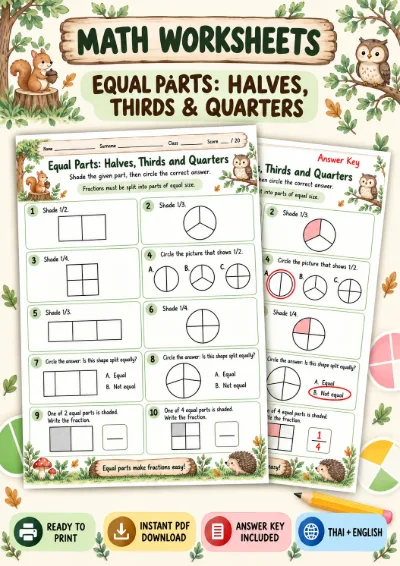
Grades 1–3 (P.1–P.3)
Equal Parts: Halves, Thirds and Quarters - Shade and Choose
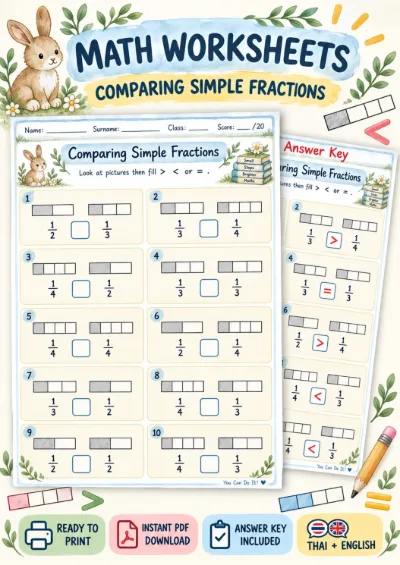
Grades 1–3 (P.1–P.3)