

AR games are not designed to fill a whole lesson. They work best as a short review slot of about ten minutes, at the end of a lesson or the start of the next, to see how much of what you just taught has stuck. The challenge is that most Thai classrooms have 30 to 40 pupils and a single screen at the front.
This article explains how to get the whole class playing with the tools the system has today: choosing a way to play based on the devices you have, preparing before the lesson, keeping order while you play, and reading the end-of-lesson summary to plan what to reteach.
Two ways to play, depending on your devices
Option 1, one device at the front: open the game on a computer connected to a projector or TV. The game is a link that opens in the browser, with no app to install. If the computer has a camera, a pupil stands in front of it, points a hand at an answer and holds it there until the circle fills, without touching anything. If there is no camera, choose touch mode instead; the same game set works both ways. The rest of the class thinks it through together, or votes with raised hands before the volunteer chooses.
Option 2, Classroom Mode with a room code: a signed-in teacher with a Classroom Pass opens a room from the chosen game. The front screen shows a six-character room code and a QR code. Pupils go to krufahda.com/th/rooms, enter the code and a nickname, with no pupil accounts needed, and answer by tapping on their own device. The teacher controls the pace from the front screen. Everyone answers every question, and the teacher gets an end-of-lesson summary.
If you are new to this, try option 1 once first. Children get used to how the game looks and to the question types, which include multiple choice, sorting, matching and ordering. Then move to option 2 next time.
Not 40 devices? Use team mode
Most classes do not have a device for every child, and many schools have rules about pupils' phones. The answer is to play in teams. When opening the room, the teacher chooses individual play, 2 teams or 4 teams. Split the class into groups of four or five, give each group one school tablet or one phone the teacher has allowed, use the group's name as the nickname, and pick a team when joining. A class of 40 then needs only about eight to ten devices.
Group play gives you more than saving devices. Children have to talk before they tap an answer, and those who understand end up explaining to the others, which is one of the most effective kinds of review. One thing to know: teams lock when the game starts, so make sure every group has joined before you press start.
Preparing before the lesson
- Test on the device you will actually use: open the game on the classroom computer once before the lesson day. If the browser asks for camera permission, allow it. If there is no camera or it does not work, use touch mode.
- Check the internet: Classroom Mode needs an internet connection on the teacher's device and on every pupil device. If the signal in the room is poor, use the one-device option instead.
- Pick a question set that matches what you just taught: the library is organised by subject and grade, and most sets have four to eight questions or rounds, which fits a ten-minute slot. If you want several games in one lesson, you can arrange a multi-game plan in order beforehand.
- Sit at the back: sit in the last row and check that you can read the screen. If not, zoom the browser in or switch off the lights at the front of the room.
- Set up groups and roles: one pupil holds the device, one reads the question, one checks before tapping. Rotate the roles every time you play.
Running the game: how the teacher sets the pace
The front screen is the teacher's control panel. You can start, move to the next question, reveal the answer, skip a question, pause and end the game. The screen shows how many have answered out of the total and a timer for how long the current question has been running, so you can wait until nearly every group has answered before revealing, without walking round asking who is still working.
Several features help keep order. A pupil device accepts one answer and then locks, so tapping repeatedly does nothing. Pupil devices do not show anyone else's score and do not say straight away whether an answer was right. Rankings appear on the front screen when the game ends, so children look up at one shared screen instead of down at their own device.
- Devices stay face down until the teacher shows the question.
- The group agrees before tapping. If someone taps before the group has agreed, a classmate holds the device for the next question.
- If the room gets noisy, press pause. While paused, no answers are accepted and pupil devices show a message to look at the front screen. Then use the quiet signal your class already knows.
- At every reveal, ask one group that answered correctly to explain why, instead of just announcing which answer was right. The reveal screen includes a short explanation you can build on.
A sample ten-minute review slot
- Minutes 0 to 2: put the room code on the screen while children are still packing away from the previous activity. Groups that have joined wait quietly.
- Minutes 2 to 8: play six questions, about a minute each including the reveal and a brief explanation from the children.
- Minutes 8 to 10: open the end-of-lesson summary, look together at the question most people got wrong, and tell the class the next lesson will start there.
Reading the summary to plan reteaching
When the game ends you see a summary: how many joined, how many answers were correct out of the total, and for each question how many were right, wrong and unanswered. Questions that some pupils got wrong also show the answer explanation.
The useful way to read it is question by question, not just the total score. If one question was missed far more than the others, look at what idea it tests and reteach that idea. Keep questions with many "no answer" separate from questions with many wrong answers. The first is usually about running out of time or a dropped connection; the second is a genuine misconception that needs teaching again.
The summary deliberately shows no pupil names and no individual answers, so it suits class-level decisions about what to reteach, not individual grading. When you need evidence for each child for assessment, pair the game with a worksheet or an exit ticket, for example the multi-step word problems worksheet after a word problem set, or the forces and movement worksheet after a science set on forces.
Privacy questions parents often ask
Pupils do not need accounts and use only a temporary nickname. When playing with the camera, hand tracking runs in the browser on that device; camera images are not sent to a server and are not recorded. In Classroom Mode pupils answer by tapping the screen, so no camera is used at all. Teachers can explain this to parents directly.
Common problems and fixes
- A pupil cannot join: usually the code was mistyped. Read the code aloud one character at a time, or have them scan the QR code instead.
- A pupil device says the signal is poor: the system tries to reconnect by itself. If it keeps dropping, reduce the number of devices by playing in teams.
- The camera struggles to track hands in front-of-class play: a backlit or very dark room often makes hands hard to detect. Try a different standing position or switch to touch mode.
- The same group wins every time and the others lose heart: switch to 2 or 4 teams so points belong to the team, and reshuffle the groups every week.
Worksheets from this article
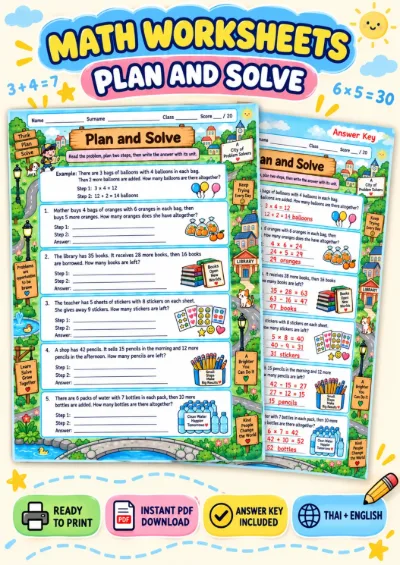
Grades 1–3 (P.1–P.3)
Multi-step Word Problems - Plan and Solve
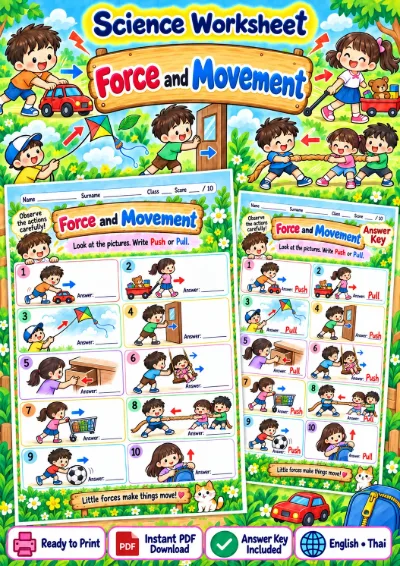
Grades 1–3 (P.1–P.3)
Force and Movement - Push or Pull
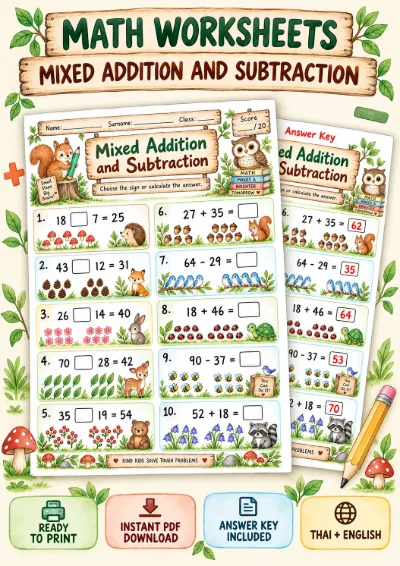
Grades 1–3 (P.1–P.3)
Mixed Addition and Subtraction - Choose the Sign
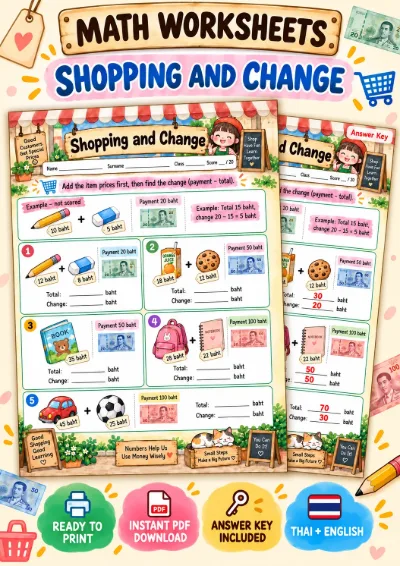
Grades 1–3 (P.1–P.3)